The system reads scanned UPDs, VAT invoices, and waybills, enters the details into an Excel register, and flags any field it couldn’t recognize with high confidence. It runs on the company’s own server, so documents are never sent to outside services


Since 2013, Corestone has helped manufacturers get their products listed in the registry of Russia’s Ministry of Industry and Trade. A listing confirms that a product is made in Russia and opens the door to government contracts and incentives. Corestone runs a lot of projects, and each one generates a large volume of accounting source documents.
These are the UPDs (universal transfer documents), VAT invoices, and waybills that come with every delivery. The accounting team compiles them into registers that capture each document’s number, date, supplier, buyer, contract reference, amount, stamps, EDI markers, and line items. The documents arrive as scans of varying quality.
Entering all of this by hand was slow, and with this many documents, it was easy to get an amount, number, or date wrong.
There was one more constraint: the documents are sensitive and can’t be sent to outside cloud services.
So Corestone needed the register to be generated automatically, with all processing kept inside its own infrastructure.
An employee points the system to a folder in the company’s file storage, and it recognizes the documents and builds an Excel register — no downloading or uploading files. Documents merged into one file are split and processed one by one.
Recognition works on two levels, so results stay accurate even on rotated or faded scans. Fields the system can’t read are flagged, not guessed.
The system runs on the company’s own server, so documents are never sent to outside cloud services.
Here’s the employee’s workflow, step by step: from logging in to getting the finished register.
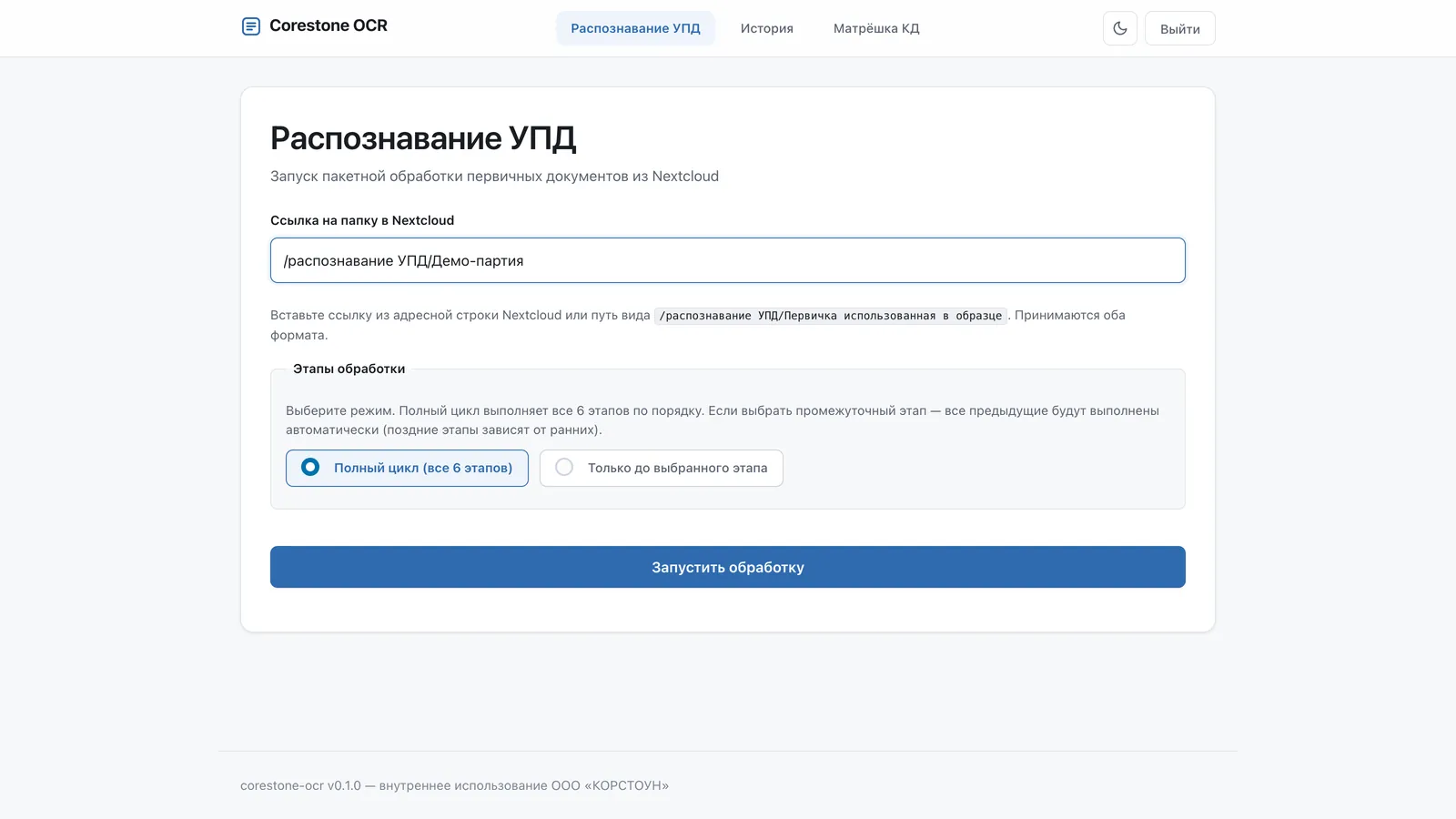
The employee opens the app in a browser and signs in with a username and password. Access depends on role: admins see every run, regular users see only their own. In the “UPD recognition” section, the employee pastes a link to the document folder in storage, picks a processing mode, and clicks “Start processing.”
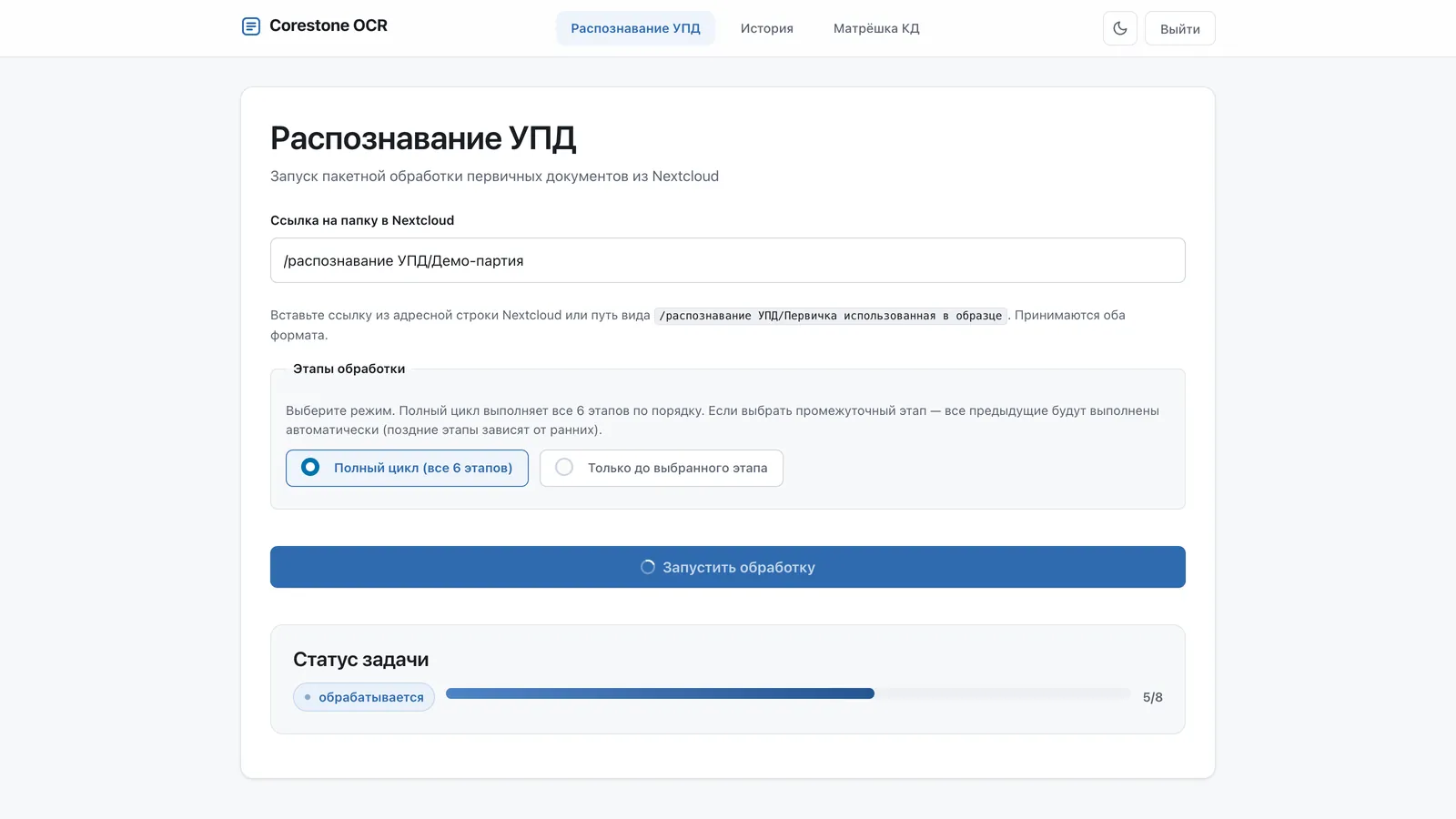
The system pulls the documents from storage and processes them one at a time. The screen shows how many documents are in the folder and how many are already done. Each document goes through recognition, type detection, and stamp detection in turn.
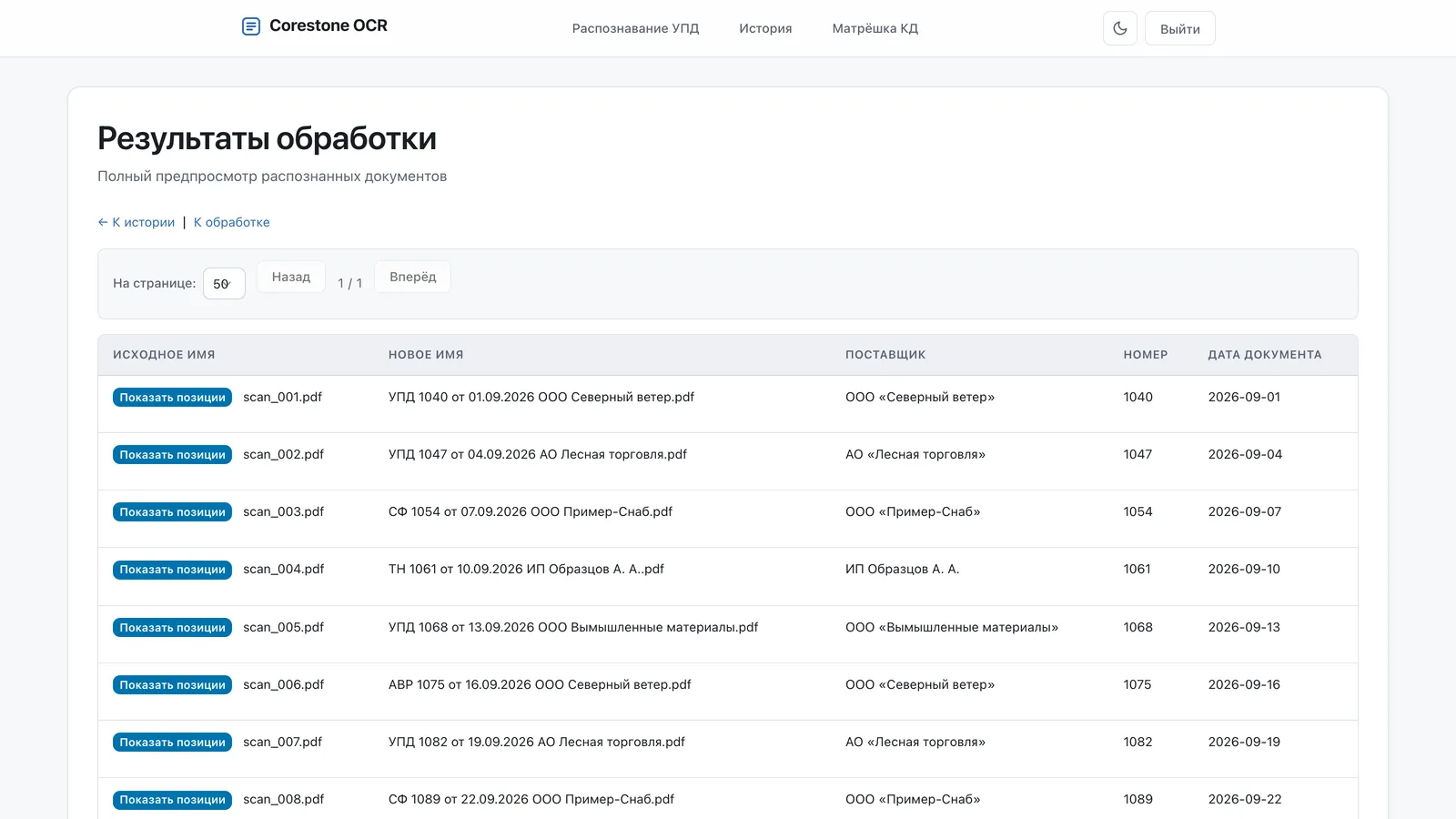
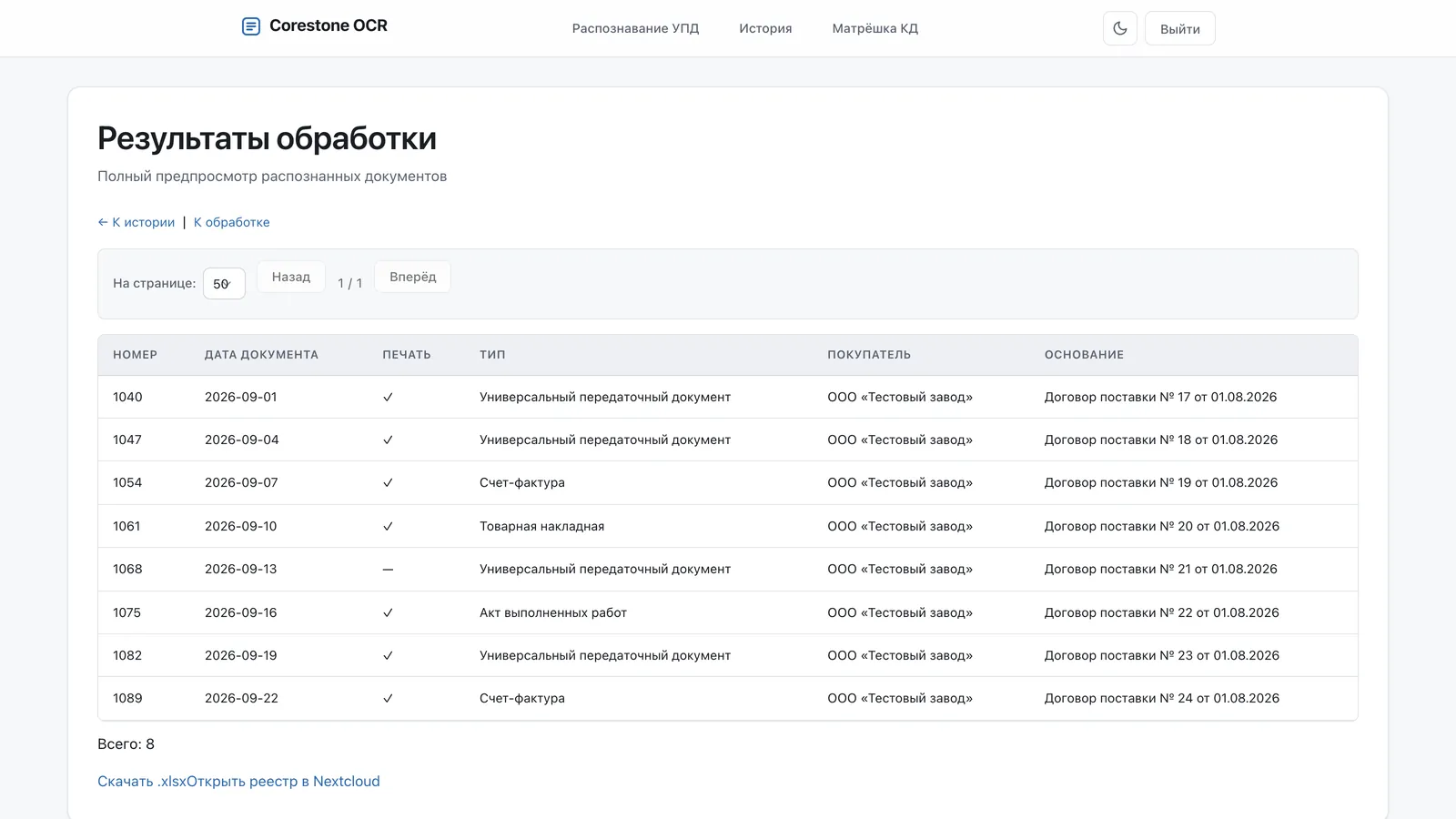
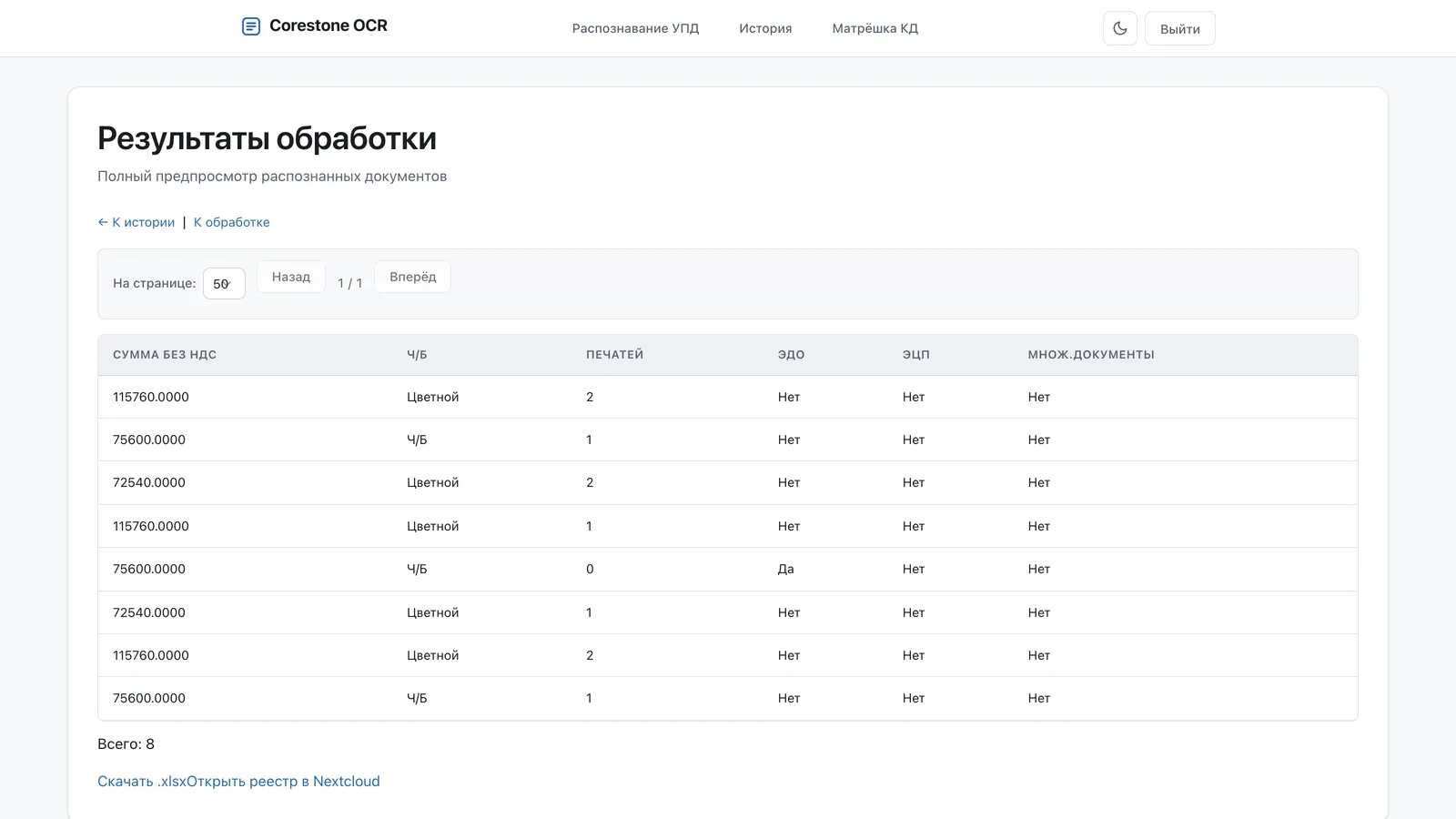
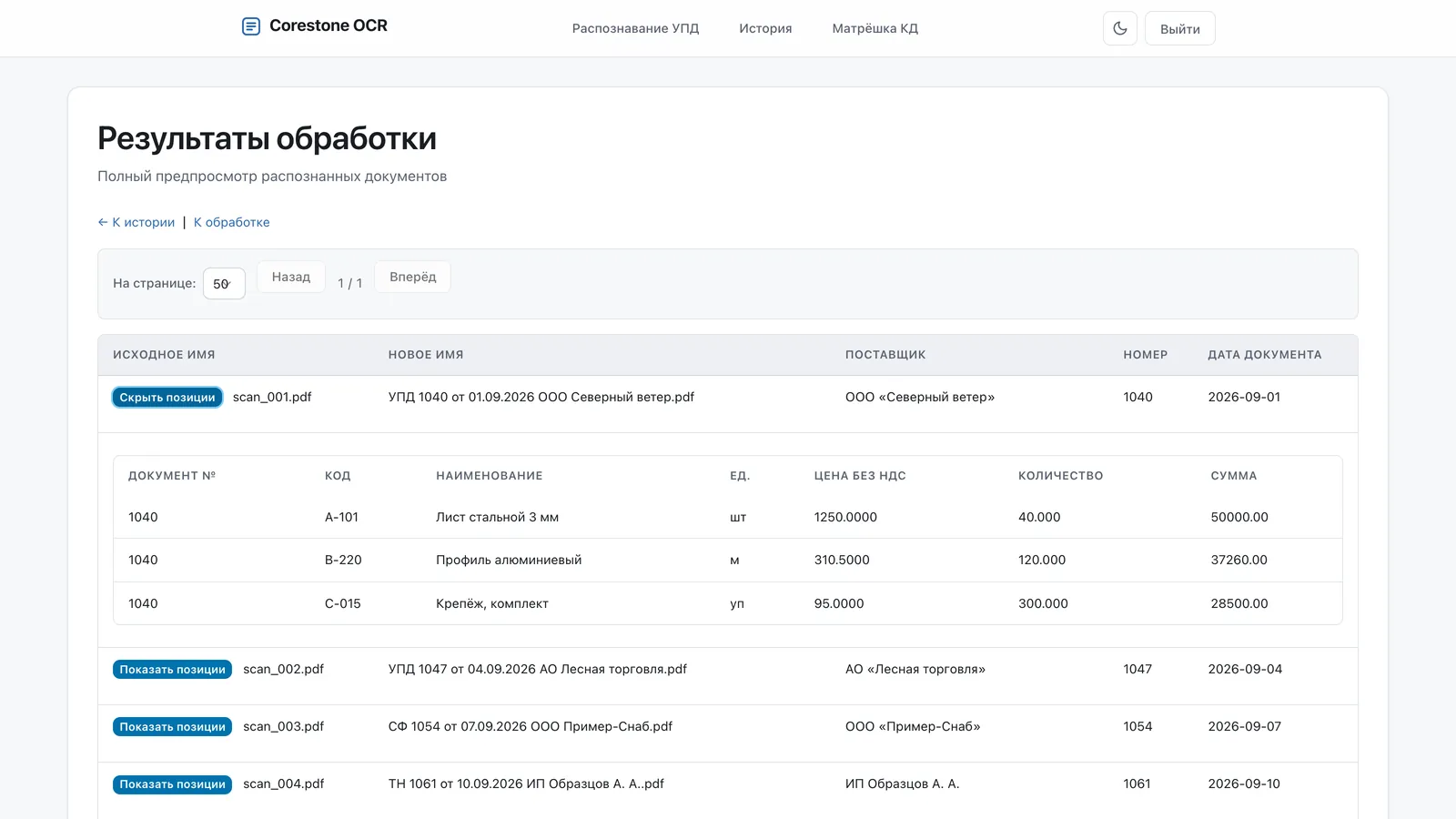
When processing finishes, a preview of every recognized document opens. Scroll the table to the right to see each document’s type, number, date, supplier, buyer, contract reference, amount, stamps, e-signatures, and line items.
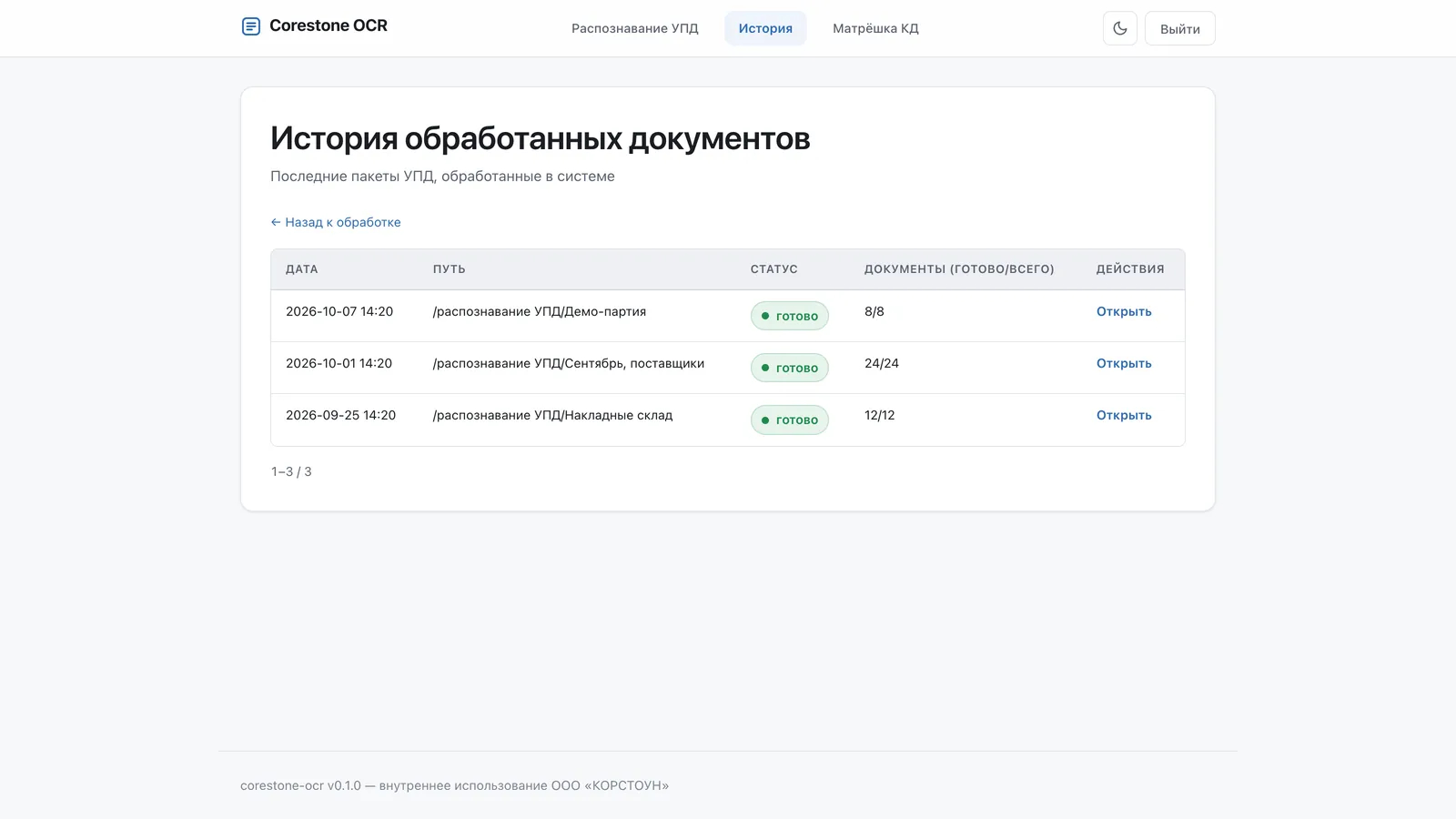
The register is exported from the preview to Excel and saved to a results folder in storage, next to the renamed documents (file names follow the company’s template). The “History” section keeps every past run with links to its results, so you can go back to any processed batch.
Also used: SQLite — run history · openpyxl — building the Excel register
Accounting now processes hundreds of documents with no manual entry, and sensitive data never leaves the company.
A similar setup fits any team that retypes data from documents into spreadsheets or business systems and can’t let those documents leave the company.
We build solutions like this around your needs: turnkey AI products, AI agents and automation, integrations, and data.
Our servicesTell us about your project — we’ll talk it through and show you how to make this work for your business

We use cookies and Yandex Metrica to improve our website. Privacy policy